Get free quotes from dental IT support near you
Takes about a minute. Free, no obligation; providers reply to you directly.
The three weeks before our IT provider came on-site, I did nothing to prepare. No hardware list, no credentials written down, no idea where our backup logs even lived. The technician spent the first hour just figuring out what we had — time we were paying for, patients waiting in the lobby.
That was an expensive lesson in the difference between having an IT support session and actually using one.
The Short Version:A dental IT support session is only as valuable as your preparation. Gather your hardware inventory, access credentials, backup verification, and compliance documentation at least one week before the technician arrives. Miss these steps and you’re paying $125–$250/hour for discovery work you could have done yourself.
Key Takeaways
- 68% of healthcare organizations experienced a cyberattack in 2024 — your prep directly affects how much exposure you have going in
- HIPAA audit data shows 1 in 5 dental practices cited for access control failures; your IT session is the moment to fix this
- Hardware older than 3–5 years running unsupported operating systems is the single most common vulnerability IT providers find
- Customized, staff-drafted checklists get followed; generic templates get ignored
The Week Before: Your Pre-Session Audit
Most practice owners hand the IT provider a building key and a cup of coffee. That’s not preparation — that’s outsourcing your thinking.
Here’s what to complete 1–2 weeks out:
Hardware Inventory
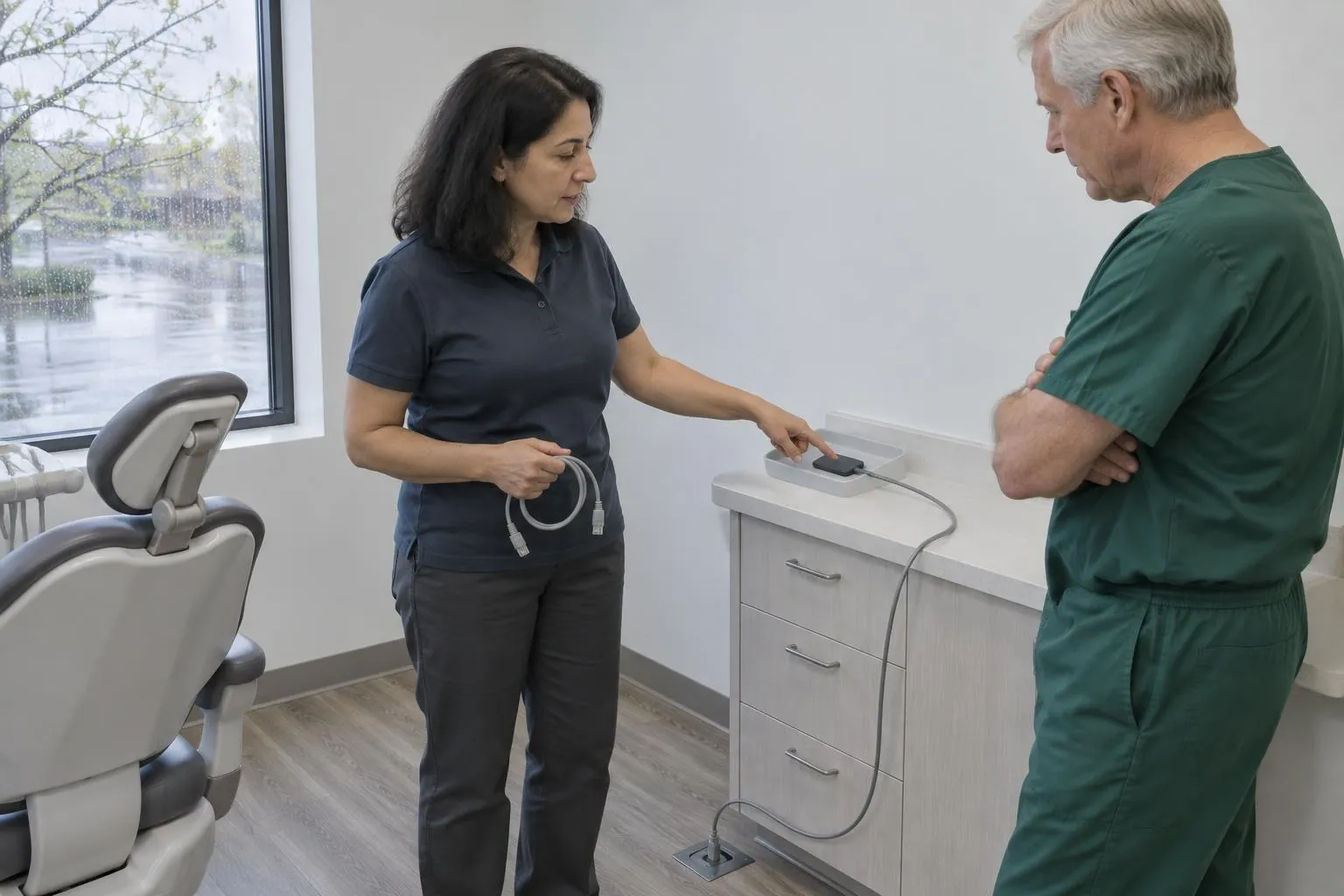
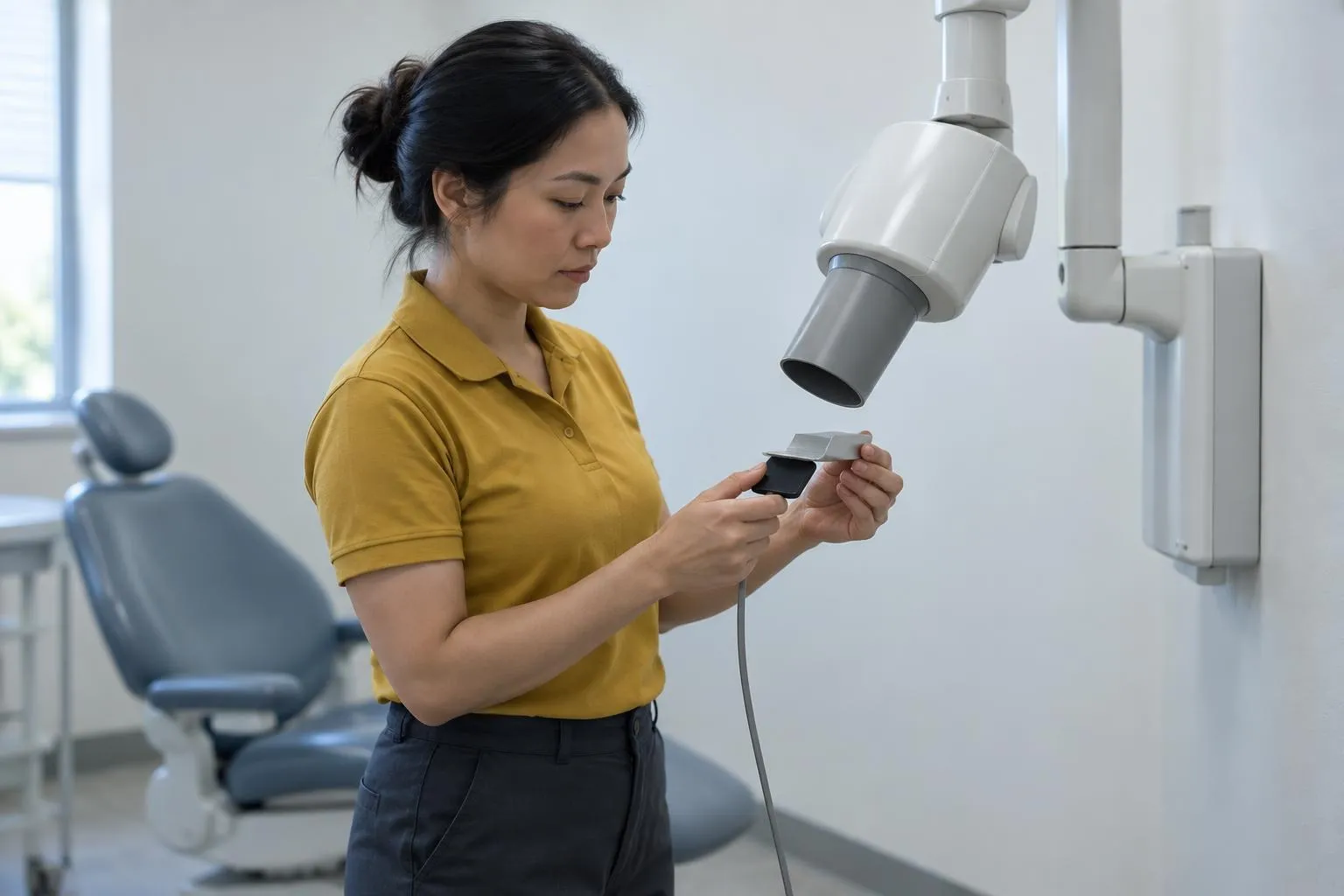
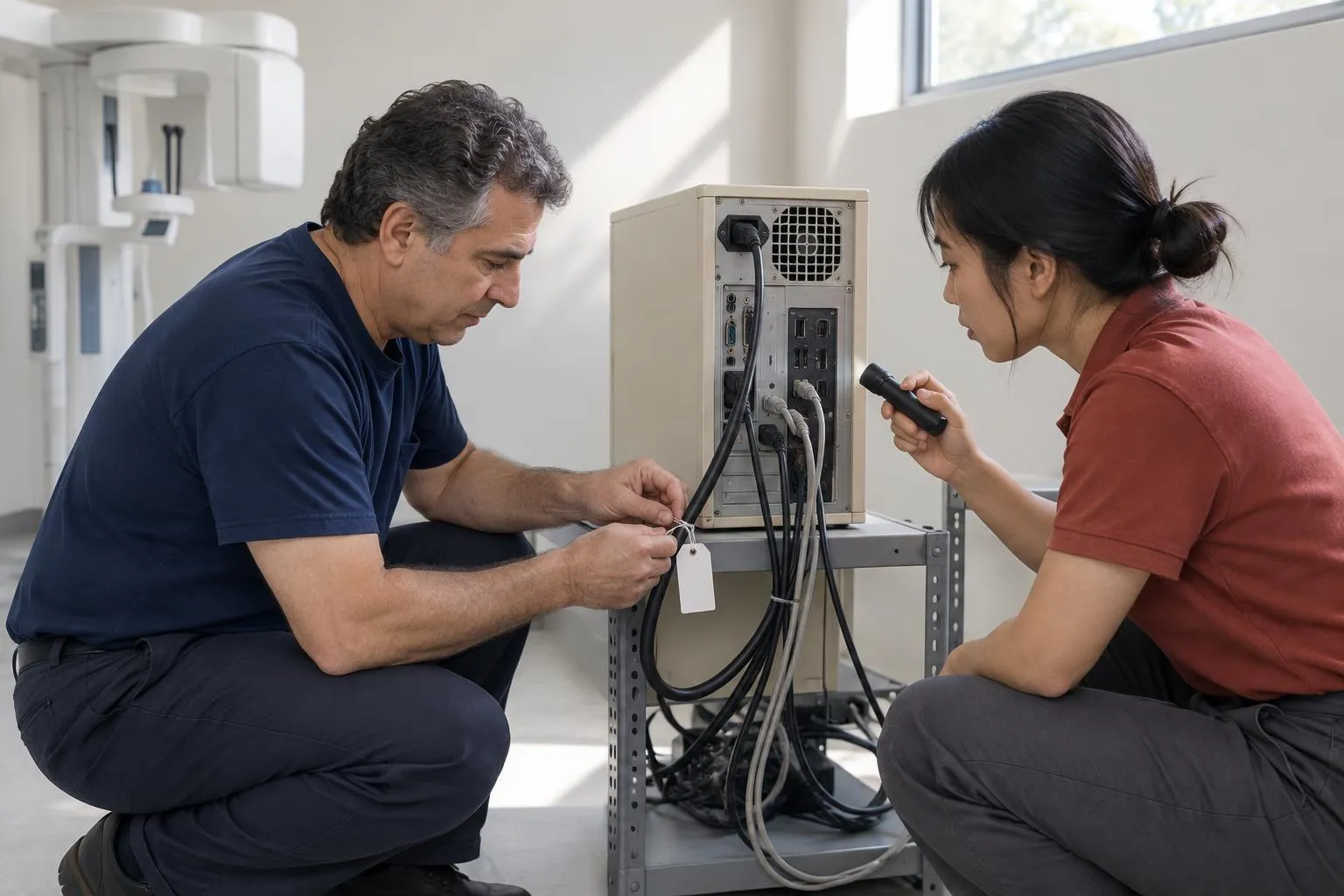
- List every workstation, server, and imaging device by operatory/location
- Note the operating system version and approximate age of each machine
- Flag anything running Windows 10 (EOL October 2025) or older — these are your highest-risk assets
- Mark devices older than 3–5 years for the refresh conversation
Software Documentation 5. Document your practice management software (Dentrix, Eaglesoft, Open Dental, etc.) and version numbers 6. List all imaging software and confirm it’s integrated with your current EHR 7. Note which applications handle PHI — these need HIPAA-compliant versions confirmed before the session
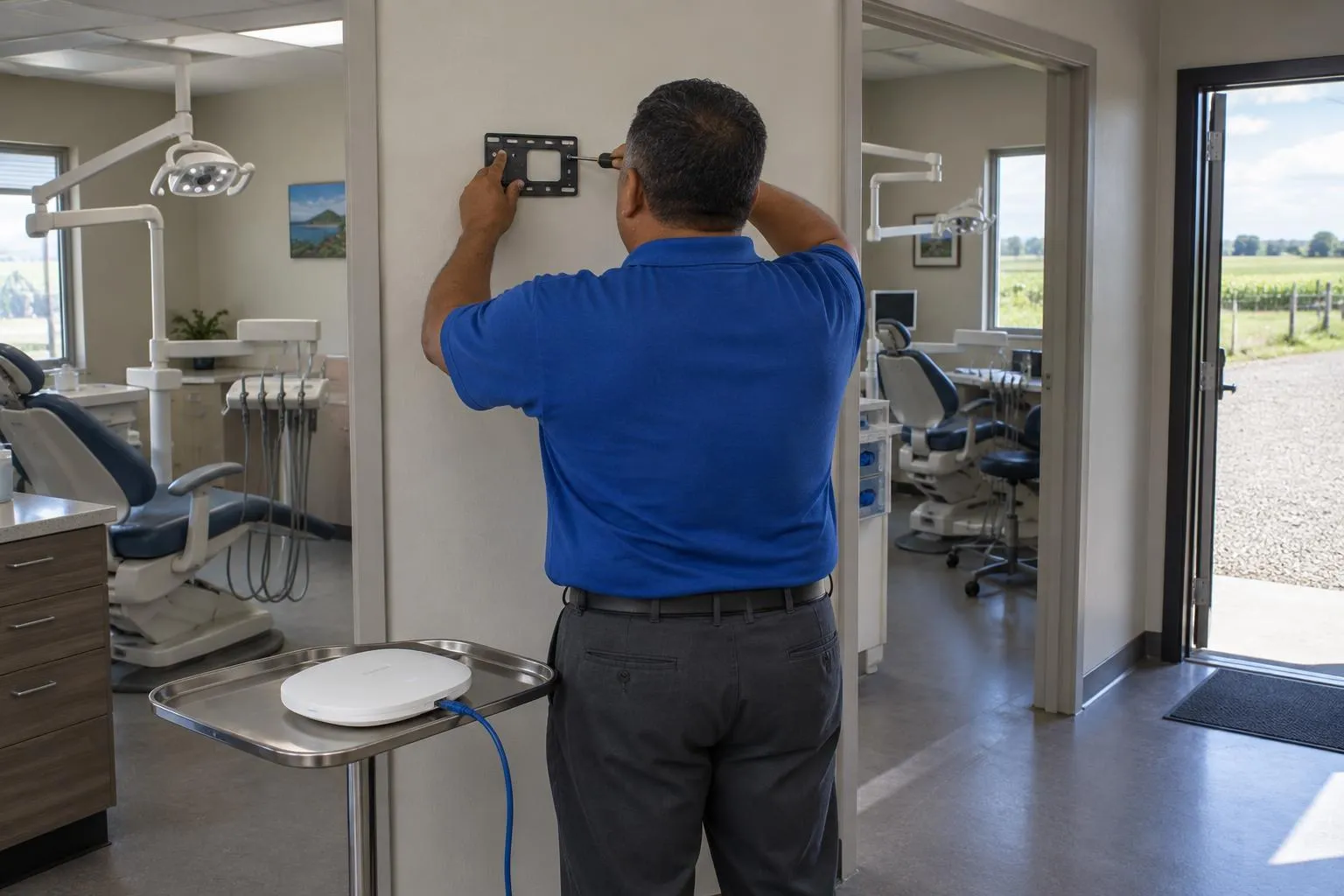
Network Map 8. Diagram your Wi-Fi setup — is guest Wi-Fi on a separate SSID and VLAN from clinical systems? 9. Record your firewall make/model and when it was last updated 10. Test your primary internet connection and confirm your failover backup is functional
Reality Check:If your guest Wi-Fi and your Dentrix workstations are on the same network, you have a PHI exposure problem right now — not a theoretical one. Network segmentation is one of the first things a qualified dental IT provider will address, and you want to walk in knowing whether it exists.
Data and Compliance: The Non-Negotiables
This is where the real liability lives. The average dental data breach costs $1.2M in recovery — and 2025 OCR audit data shows 1 in 5 dental practices cited specifically for inadequate access controls or missing audit logs.
Backup Verification 11. Confirm automated daily backups are running (check the log, don’t assume) 12. Verify backups are encrypted and stored offsite or in a HIPAA-compliant cloud 13. Schedule a recovery test during the IT session — not just a backup verification, an actual restore test
Access Controls 14. Pull a list of all active user accounts in your practice management software 15. Identify any accounts for former employees — these should already be disabled; if they’re not, flag immediately 16. Confirm MFA is enabled on all remote access points (VPN, cloud portals, email) 17. Review session timeout settings — workstations left unlocked in operatories are a physical safeguard violation
Encryption 18. Verify PHI at rest is encrypted on all devices storing patient data 19. Confirm email encryption is active for any clinical communications
Nobody tells you this: the IT provider can only fix what they know about. If you haven’t checked your user account list before they arrive, they’re auditing blind.
Staff and Training Readiness
Healthcare phishing success rates run at 36% among untrained staff. Your IT session should surface training gaps — but you need to walk in knowing where those gaps are.
- Designate a checklist owner for each clinical area (front desk, hygiene, ops)
- Confirm all staff have completed HIPAA training in the past 12 months — ADA member modules are free
- Write down your current incident reporting process (who gets notified if a device is lost or a suspicious email is clicked)
- Flag any new hires whose system logins haven’t been set up with proper role-based permissions
Pro Tip:Don’t use a generic HIPAA training template. Have your front desk staff draft the steps for how they actually handle patient intake; have your hygienist describe their imaging workflow. Staff-authored checklists get used. Vendor templates get filed.
Session Day: What to Have Ready
The IT provider is on the clock from the moment they walk in. Eliminate discovery friction.
- Write down all admin credentials in advance — network admin, practice management software, imaging systems, firewall
- Designate a quiet workspace away from patient flow where configuration work can happen
- Brief staff that the session is happening and what to expect (reduces interruptions)
- Have your master task list ready: what specific problems prompted this session, what outcomes you need
What It Actually Costs (So You’re Not Surprised)
| Service Type | Typical Cost |
|---|---|
| On-site hourly IT support | $125–$250/hour |
| Managed dental IT (monthly) | $150–$300/user/month |
| Full HIPAA audit/compliance setup | $5,000–$15,000/year |
| Staff HIPAA training platform (10–20 staff) | $500–$2,000/year |
Specialized dental IT providers cost more than general IT shops — and they’re worth it. A technician who doesn’t know the difference between Carestream CS Imaging and a standard workstation will spend your money learning on your dime.
Common Mistakes That Waste Your Money
| Mistake | What Happens | Fix |
|---|---|---|
| No hardware inventory | IT spends hour 1 on discovery | Prep checklist 1–2 weeks out |
| Assuming backups work | No tested recovery = no backup | Run a restore test, not just a log check |
| Generic staff training | Phishing clicks, HIPAA citations | Role-based, staff-drafted workflows |
| Unsegmented Wi-Fi | PHI accessible from lobby | Flag for immediate network remediation |
| Outdated credentials list | Former employees still have access | Audit user accounts before session |
Practical Bottom Line
Your IT support session is an investment. A prepared practice gets remediation, risk reduction, and a clear roadmap. An unprepared one gets an expensive inventory exercise.
Run through this checklist the week before your next session. Have your hardware list, your access credentials, your backup logs, and your user account audit ready at the door. If you’re building this into an annual rhythm, the complete guide to dental IT support covers how to structure ongoing managed services so these sessions become proactive instead of reactive.
The technician can’t harden what they can’t see. Give them a clean target.
Done reading? Get quotes from dental IT supports near you.
Takes about a minute. Free, no obligation; providers reply to you directly.
Popular cities:
Nick built this directory to help dental practice owners find credentialed IT providers without wading through general IT shops that lack dental software expertise — a gap he encountered when researching technology vendors for healthcare clients who needed both HIPAA compliance and Dentrix familiarity from day one.